
TrueSpec
Know Your PC
TrueSpec
TrueSpec looks inside your PC and tells you - in simple terms - how good the parts are and whether the machine is really new or has been used before, then hands you a printable report.
Who this is for
- Someone who just bought a new laptop or desktop and wants to confirm they got what they paid for.
- Someone buying a computer second-hand or from a marketplace who wants to check the seller’s claims.
- Anyone who wants a clear, no-jargon health check of a Windows PC.
You do not need to be technical. TrueSpec does the digging and explains the results.
What TrueSpec checks
TrueSpec inspects the whole machine and organizes everything into simple sections you can click through:
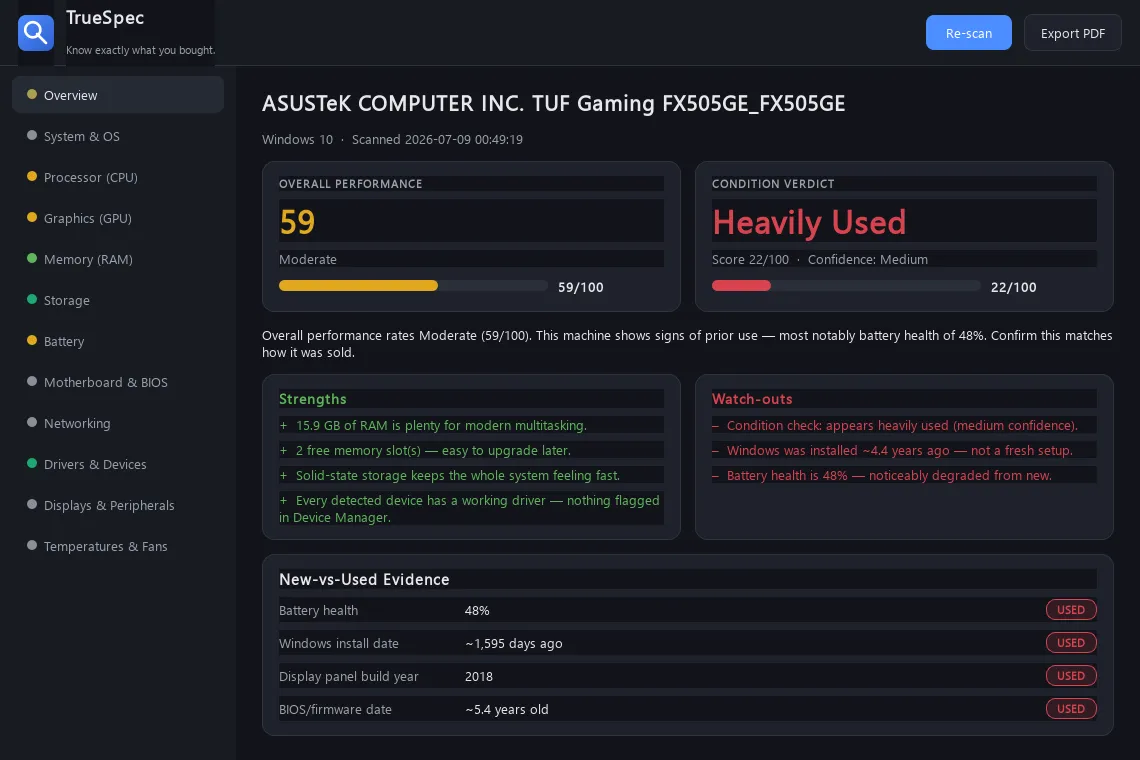
- Overall verdict - a performance score and a “brand new / lightly used / used / heavily used” condition rating, with a confidence level.
- Processor (CPU) - model, cores, speed, and how powerful it is.
- Graphics (GPU) - the graphics card(s), memory, and whether it’s a real gaming-grade card or basic built-in graphics.
- Memory (RAM) - how much, how fast, how many slots are used, and whether you can add more later.
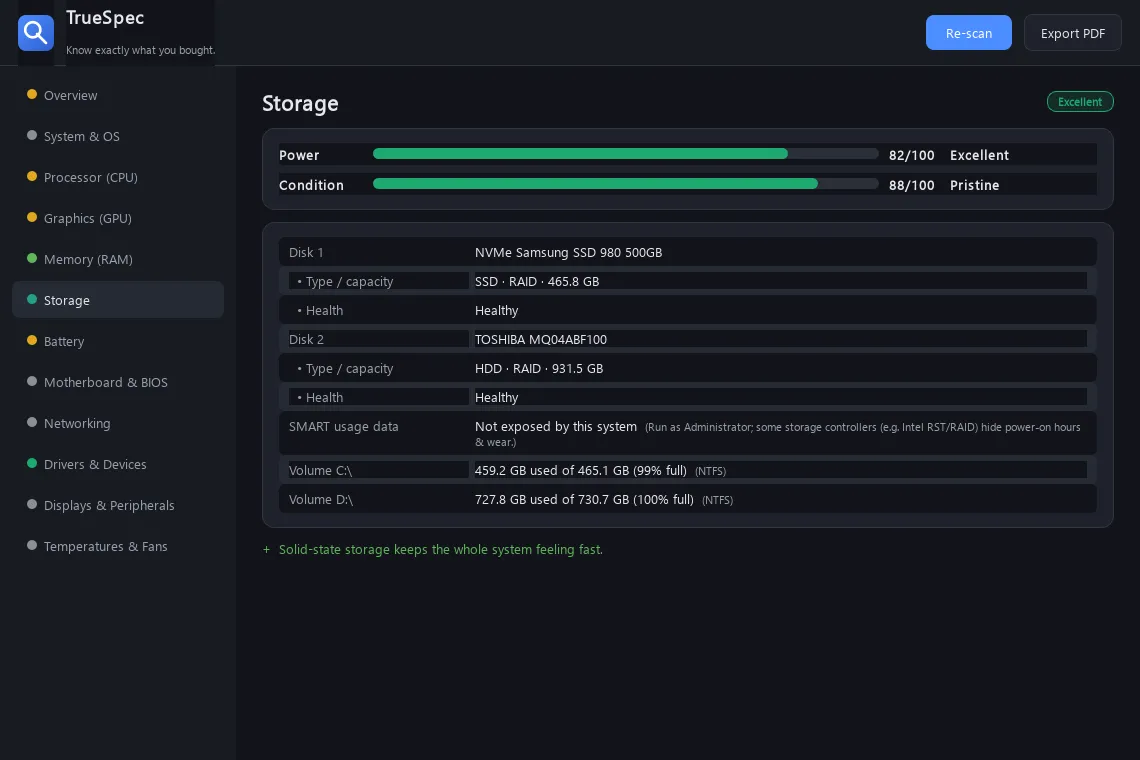
- Storage - your drives, whether they’re fast SSDs or slower hard disks, their health, and (with admin rights) how many hours they’ve been running.
- Battery (laptops) - its real health compared to when it was new, and how many charge cycles it has been through.
- Motherboard & BIOS - the mainboard, firmware version and its date.
- Networking - Wi-Fi and Ethernet adapters.
- Drivers & Devices - whether every part has a working driver, and flags anything Windows is complaining about.
- Displays & Peripherals - the screen, and - cleverly - the year the screen panel was actually manufactured (a great clue for a laptop’s true age), plus audio and input devices.
- Temperatures & Fans - thermal readings where the system exposes them.
How to use it
- Open TrueSpec. On Windows, double-click
TrueSpec.exe. Nothing to install.- For the most complete results (battery + drive usage hours), right-click and choose Run as administrator.
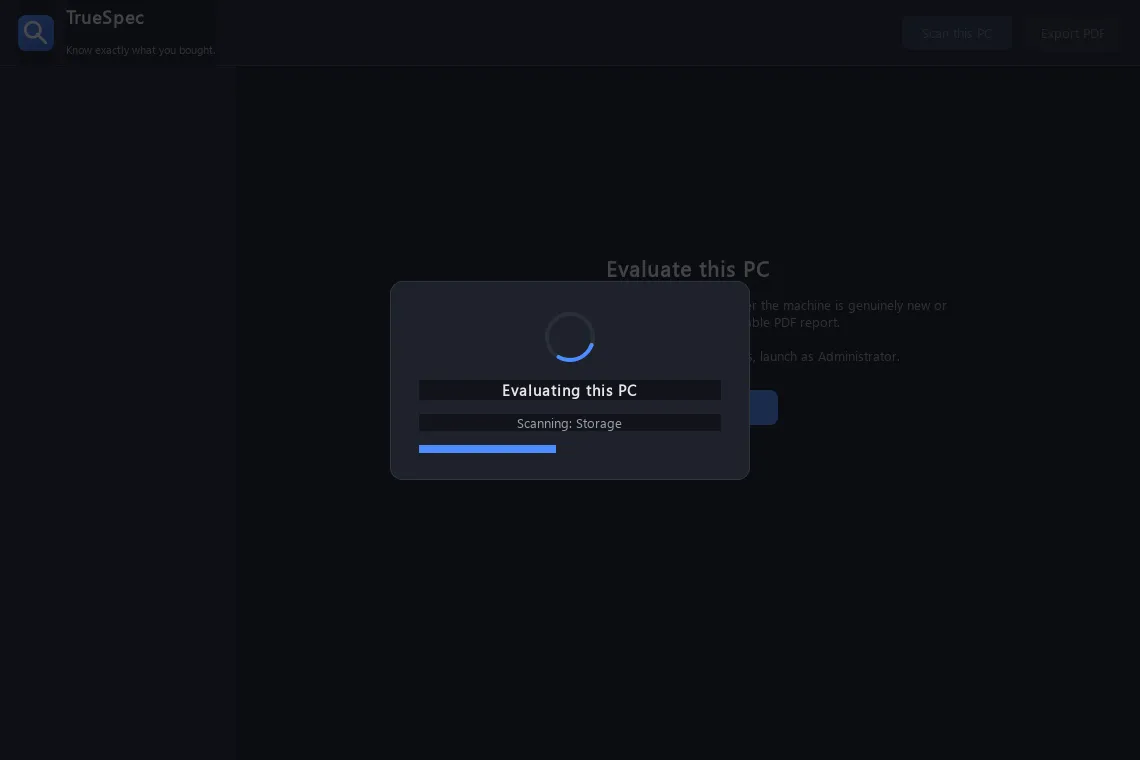
- Click “Scan this PC.” A pop-up appears in the middle of the screen with a spinning animation and a progress bar showing exactly what it’s checking. It takes a few seconds.
- Read the Overview. You’ll see two big cards: an Overall Performance score and a Condition Verdict (is it new or used?). Below that are the Strengths, Watch-outs, and the evidence behind the verdict.
- Browse the sidebar to see details for each component. Each has a colored bar showing how strong or healthy it is.
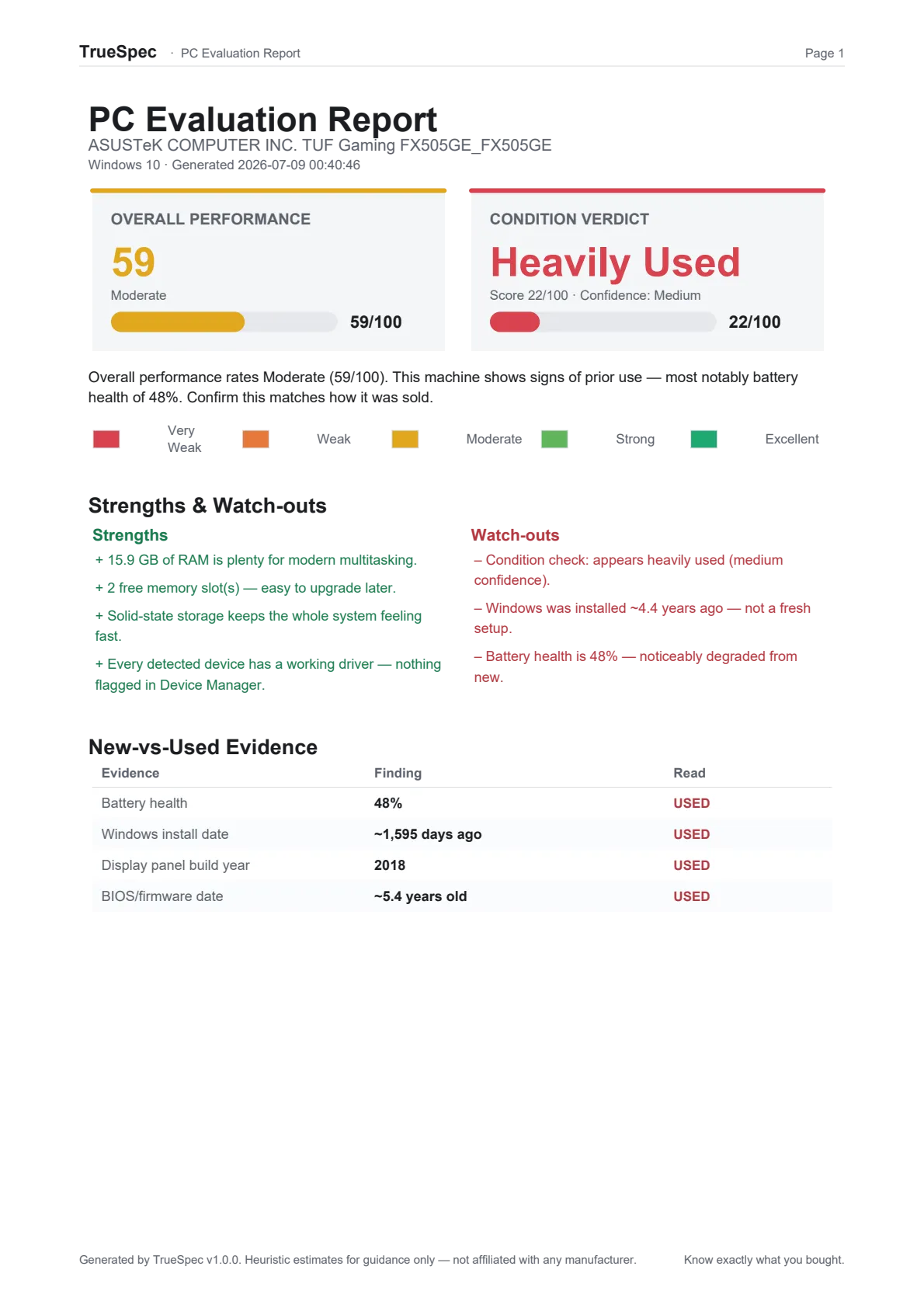
- Click “Export PDF” to save a full report you can keep or send to the seller.
Understanding your results
The colors
Everything is color-coded on a simple five-step scale:
| Color | Meaning |
|---|---|
| 🟥 Red | Very weak / heavily worn |
| 🟧 Orange | Weak / worn |
| 🟨 Amber | Moderate / fair |
| 🟩 Light green | Strong / good |
| 🟢 Green | Excellent / pristine |
Green is good, red means pay attention. The little dot next to each item in the sidebar uses the same colors, so you can spot a weak or worn part instantly.
The two scores
- Powerfulness - how capable a part is (a fast gaming GPU scores high; basic built-in graphics score low).
- Condition - how new/healthy a part is (a battery at 100% of its original capacity scores high; one down to 48% scores low).
The condition verdict & confidence
TrueSpec looks at many independent clues - drive running hours, SSD wear, battery health, when Windows was installed, when the screen panel was built, and the firmware date - and combines them into one verdict:
Likely Brand New · Lightly Used · Used · Heavily Used
It also shows a confidence (Low / Medium / High) based on how much solid evidence it had. Always glance at the evidence list - it shows exactly which clues pointed to “new” or “used” so you can make your own call.
The PDF report
The report mirrors the app: a summary page with the verdict, strengths & watch-outs, and the evidence table, followed by a full breakdown of every component with the same color meters. It’s designed to be readable by anyone - perfect for keeping a record or settling a question with a seller.
A quick buyer’s checklist
When checking a supposedly new PC, look for:
- ✅ Condition verdict = “Likely Brand New” with medium/high confidence.
- ✅ Drive power-on hours in the single/low double digits (needs admin).
- ✅ Battery health near 100% with very few charge cycles (laptops).
- ✅ Display panel built in the current or previous year.
- ✅ Windows installed very recently.
- ✅ No devices with driver problems.
- ✅ The CPU / RAM / GPU / storage match what you were promised.
If several of these look “used,” ask the seller why before you accept the PC.
Frequently asked questions
Is it safe? Will it change anything on my PC? TrueSpec only reads information. It does not modify, install, or delete anything.
Does it need the internet? No. Everything runs locally. It never sends your data anywhere.
Why does it ask me to run as administrator? A couple of the best “is it used?” clues - SSD wear and drive running hours - are only readable with admin rights on Windows. Everything else works without.
Can a seller trick it? It’s very hard to fake all the clues at once (drive hours, battery wear, panel build date, firmware date). That’s why TrueSpec weighs several signals instead of trusting one - but treat the result as strong evidence, not absolute proof.
Why is my powerful CPU only “Moderate”? Scores are simple capability tiers, not benchmarks, and Windows sometimes reports the CPU’s base speed rather than its turbo speed. Use the score as a guide alongside the actual model name shown.